Interactive Map Search (IMS) |
|
 |

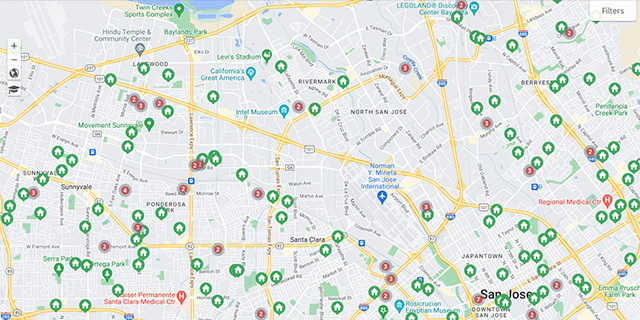
As part of PropertyMinder's robust real estate website technology, we have launched our brand new Interactive Map Search (IMS) built with Google Maps that gives visitors the best available home search experience. With our easy to use Search by Location or Draw Shape tabs, the visitor can easily drill down their search requirements to find the home of their choosing. Visitors can also view Street Views, save their favorites, and much, much more!
Search by City, Zip code, MLS # or Area
|
Using the tabbed "Location" dropdown menu, visitors will easily be able to enter a city, zip code, or MLS # and area to search for homes. The interactive map search will automatically plot the homes on a map and tell you how many listings were found. |
Search by Location
|
The search by Location dropdown menu has numerous options to refine the search parameters. Whether it is bed/bath/price to even reo or shortsale fields, the visitor will be able to drill down their search to find the home of their choosing.
|
Draw Shape or Box
|
Visitors will love to just search by drawing a shape or box directly on the Google map. This makes it easy to search by a specific city or neighborhood that the visitor wants move to. Visitors can make the shape bigger or smaller by manipulating the drawing or erase and start from scratch.
|
Multiple Location Search
|
On the search by Location tab, there is the option to search by multiple cities, zip codes, or MLS areas/zones. You can input many different areas at the same time.
|
Google Street Views
|
See the homes on your computer as if you right in front of the house. Every listing result will have the Street View option. On top of that, the Street View allows you to "drive around the neighborhood" and not just only look at that one specific home.
|
| Favorites |
Every property listing will have "add to favorites" icon which they will be able to save in their Favorites profile. This will allow maximum lead capturing since the visitor will have to register for this functionality and you will be notified whenever this happens.
|
Save Searches
|
The same save searches functionality is still available in our Google Mapping platform. Visitors can save their searches and receive listings via email that match their criteria.
|
| Search Results Tabs |
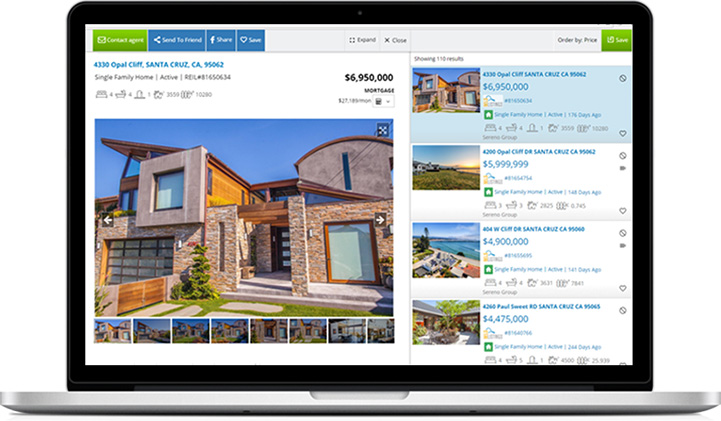
For any given search, the results will show in a List, Photos, or Table view. The List view is 50/50 photo and property description, the Photos is 100% photos, and Table is all text. Easily sort the results by price, bed, bath, sq ft, lot size, city, and list date.
|
Property Details
|
Also included in our Google Map MLS searching is our property details view which contains thorough information and property description for each listing. You can select to have these layer over in the same window or popup in a new window.
|
Search Filters
|
Choose -AND- and your search results will match ALL of the following criteria. Choose -OR- and your search results will match ANY of the following criteria. Choose -NOT- to exclude listings which match the following criteria from your search results.
|
|
Default Map View
|
The agent (owner of the website) can set the default map view that visitors will see initally.
|
Map Search in Toolkit
|
Agents can also see the Google Map MLS search inside the Admin Toolkit interface.
|
Custom IDX
|
Create Custom IDX searches using the Google Map MLS search interface inside the Admin Toolkit interface.
|
Search Filters
|
Choose -AND- and your search results will match ALL of the following criteria. Choose -OR- and your search results will match ANY of the following criteria. Choose -NOT- to exclude listings which match the following criteria from your search results.
|
|
|